Client intake
A form on a link you send, the enquiries it brings in, and what accepting one actually creates.
6 min readReviewed 3 November 2026
Pertavo gives your firm one enquiry form on a secret link. Put the link on your website or in your email signature, and what a stranger types goes into a queue inside the firm rather than an inbox. Accepting an enquiry opens the matter and invites the client.
The form is switched off until you switch it on. Nobody can reach it before then, including anybody who has somehow guessed the link.
Finding it
Enquiries in the sidebar. The panel at the top of that page holds the link, the switch and the wording; the queue sits underneath it. Once the form is on and enquiries are arriving, the panel folds away — open it again from the same place.
The link
One link per firm, with thirty-two random bytes in it. That link is the whole of the form’s security: there is no password on it and no account behind it, so anybody who has it can submit an enquiry.
That is the point — a stranger has no account — but it means the link should be treated as published the moment you send it to anybody. If it ends up somewhere you did not intend, replace it. The old link stops working immediately and the new one is there to copy. Nothing already in your queue is affected.
What every form asks
Seven questions ship with the form and cannot be removed:
| Question | Required |
|---|---|
| Name | yes |
| yes | |
| What the matter is about | yes |
| Phone | no |
| Area of law | no |
| The other side | no |
| How they heard of you | no |
Only three are required on purpose. Somebody who will not leave a phone number should still be able to ask a question, and you can ring the number they did leave.
Your own questions
Add as many as you like on top of those: which court is it in, have you instructed anyone else, when is your hearing. Each one is a short or long text box, a dropdown, a set of buttons, a tick box, a date or a number, and each can be required or not. Order is set with the arrows.
Questions retire rather than delete. An answer is stored against the question that was asked, so deleting the question would leave a value with no question on every enquiry that answered it. A retired question stops being asked, keeps old answers readable, and can be asked again later.
The queue
Every enquiry arrives as New and moves through Reviewing to Accepted or Declined. The tabs across the top count what is in each state.
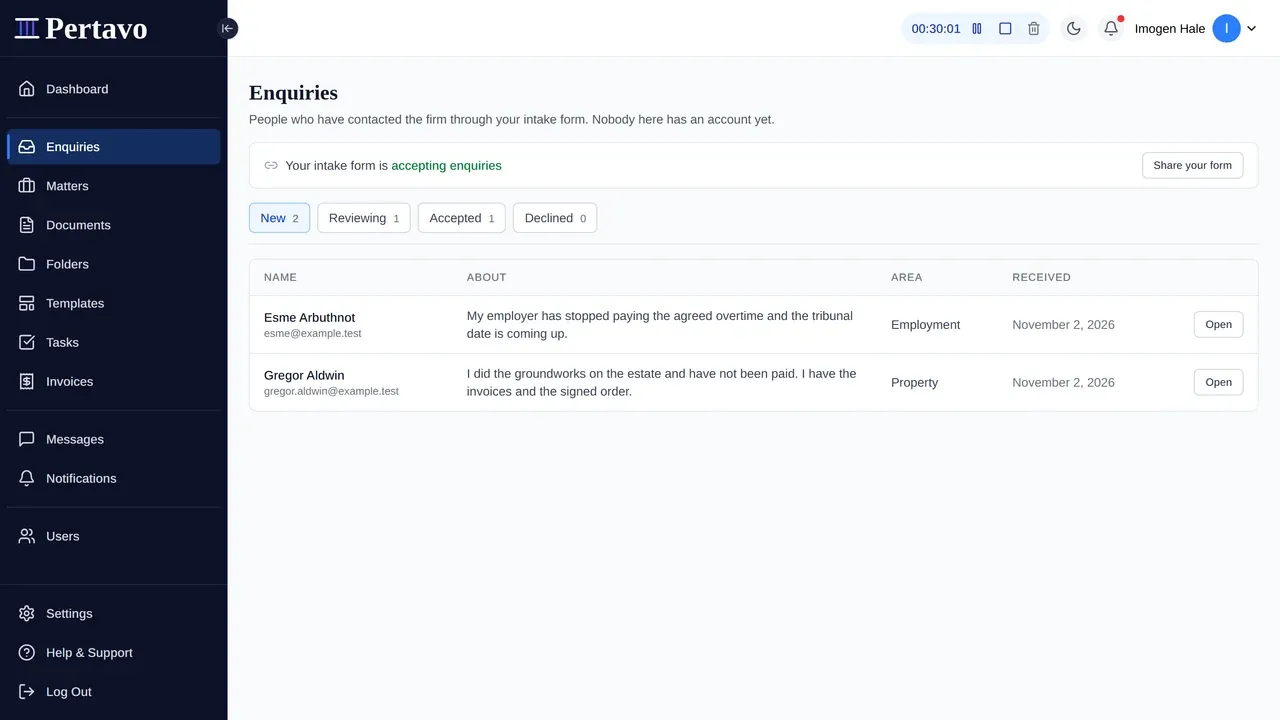
Opening one shows what they typed, your own questions and their answers, and a notes box only the firm ever sees. Declining asks for a reason, which is also kept for the firm: Pertavo does not write to the person. Replying to a stranger is a letter your firm writes in its own words, from your own address, and nothing here sends it for you.
What accepting creates
Pressing Accept can do two things, and you choose which:
- A matter, with a reference and title you can edit before confirming. The enquiry’s own words become the matter’s description, because it is the best description of it anybody will write.
- An invitation to the email they gave, so they set their own password and reach the client portal. If they are already a client of the firm, no second invitation is sent.
An invitation is not yet an account. The matter is created with no client attached, and the person is joined to it when they register — so a matter opened from an enquiry and never taken up stays in the firm with nobody outside it able to see anything.
If the invitation cannot be sent, the matter is removed again and you are told why. A half-accepted enquiry is worse than one you have to accept twice.
The names it checks first
Before accepting, Pertavo searches what the firm already holds for both names in the enquiry — the person asking and the other side they named. It looks in three places: your clients, your matter titles and your earlier enquiries.
One result stops you: the other side appears to be a client of this firm. That is shown with the matches and cannot be walked past without confirming you have read them. Everything else is a note you can take or leave.
What it cannot do:
- No spelling tolerance. It matches whole words, ignoring company endings like Ltd, titles like Mr and joining words. Smith finds John Smith; Smyth does not, and neither does J Smith.
- A matter has no field for the other side. The other side of an existing matter is only findable where somebody typed it into the title. This is the single biggest limit on the search, and worth knowing before relying on it.
- It is a first pass that makes somebody look, exactly like conflict checks when a matter is opened. The judgement stays yours.
How the form looks
Your firm’s name sits at the top, with your logo beside it if you have uploaded one in Settings → Organization, and one accent colour of your choosing rules the heading and the button. You can also rewrite the form’s title, the paragraph above it and the thank-you message — the defaults are plain English because only your firm can write your firm’s voice.
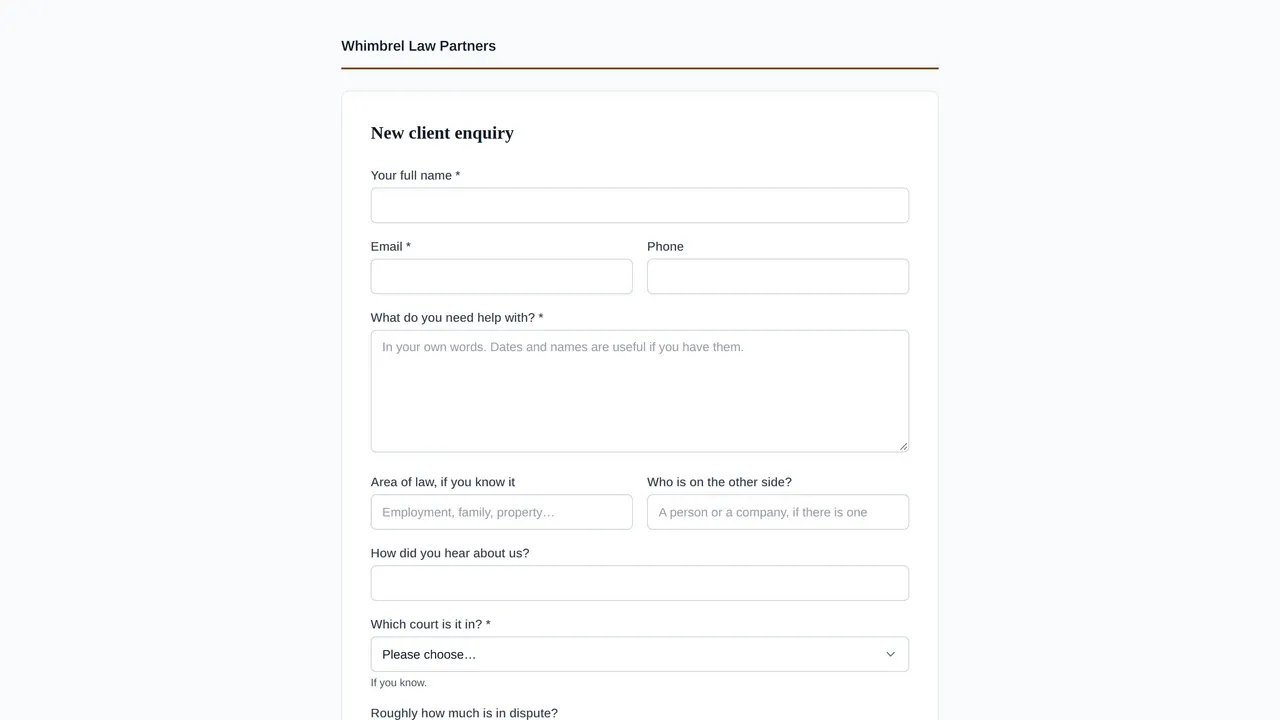
That is the whole of it. There are no sections, no questions that appear depending on an earlier answer, and no file uploads before somebody is a client. A firm that wants those is asking for a form builder, which is a different product.
Spam
If your firm’s deployment has a bot check configured, the form carries one. There is also a hidden field that only an automated submission would fill in, which is refused silently.
Where no bot check is configured the form still accepts enquiries rather than refusing everything, and the Enquiries panel says so plainly. A form that quietly stopped working would cost you a client; a form that lets through the occasional spam message costs you a click.
This did not answer it?
Sign in and write to us from Help & Support inside the portal — a message from there arrives with your firm and your account already attached, so nobody has to ask you which is which.
Sign in to Pertavo