Tasks
What is on you and what you are waiting on, on the matter or on its own — including the list your client sees.
3 min readReviewed 29 October 2026
A task is one line of work with a person’s name against it. It has a title, whoever it is assigned to, whoever assigned it, and — usually — a due date. It can sit on a matter, which is where most of them belong, or stand on its own for work that is not about one file.
An accounting firm sees the same screen; a task sits on an engagement there.
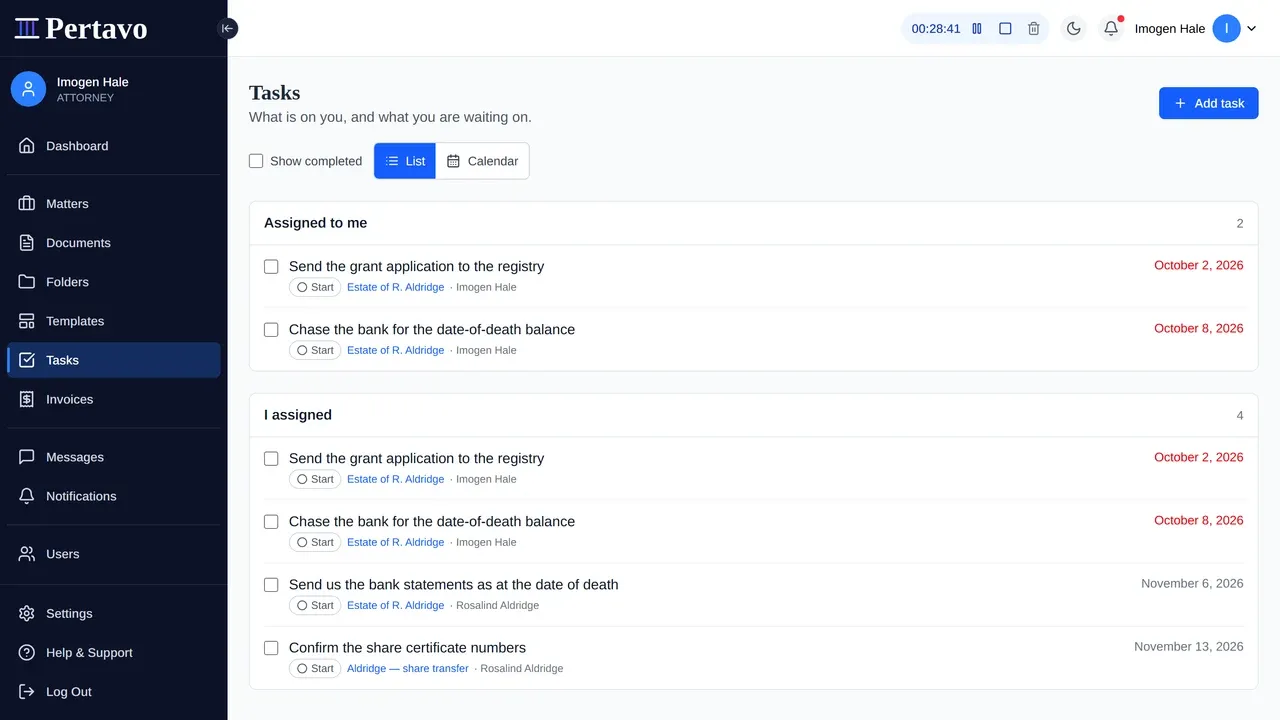
Two lists, not one
The Tasks page splits by direction rather than by date, because those are two different questions:
- Assigned to me — what you owe somebody.
- I assigned — what you are waiting on.
The second is the one that usually matters at a small firm. Work does not stall because nobody knows what to do; it stalls because nobody can see what they are waiting for.
There is a Show completed switch, off by default, so the page shows what is outstanding until you ask it not to.
Beside the list there is a Calendar, and it is not a calendar of tasks: it shows these alongside the matter’s deadlines and the firm’s appointments, because a task due the morning of a hearing is one problem rather than two. See the calendar.
The four states
A task is pending, in progress, completed or delayed. The control on each row sets them.
Two things worth knowing. The person a task is assigned to can finish it — it does not have to come back to whoever raised it. And delayed is a state somebody chooses, not one the software works out: nothing watches the due date and reclassifies anything.
On the matter
Open a matter and its tasks are on the page, with the same controls and an Add row underneath: what needs doing, who it is for, and a date. The matters list shows the count — “2 open tasks” — beside the next deadline, so you can see which file is carrying work without opening it.
Tasks are not deadlines. A deadline is a date on the file itself, and deadlines explains the difference and the thing you must not assume either of them does.
Your client has a list too
A client signed into the portal has the same Tasks page, scoped to them. That is the part most portals do not do: “waiting on the client” is usually a line somebody types into their own list and then chases by email. Here the client can see it, and tick it off.
They see only their own tasks, and only the matters they are the client on. See who can see a document for how that scoping works everywhere else.
What it does not do
No recurring tasks, no templates of tasks, no dependencies between them, and no reminder emails on a schedule. A task that nobody looks at does nothing — which is why the count is on the matters list and the list is in the sidebar rather than behind a menu.
Priority is stored on every task and is not yet shown on the page, so setting it from the API will not change what you see.
This did not answer it?
Sign in and write to us from Help & Support inside the portal — a message from there arrives with your firm and your account already attached, so nobody has to ask you which is which.
Sign in to Pertavo