Document status and approvals
What each status on a document means, and how the approval step for client uploads works.
2 min readReviewed 17 September 2026
Every document carries a status. It is the portal’s way of saying whose turn it is.
The statuses
- Pending — uploaded, nobody has done anything with it yet.
- Processed — the firm has dealt with it.
- Completed — the work it belongs to is finished.
- Pending Approval — a client uploaded it and your firm’s rules require somebody to accept it first.
- Pending Signature — a signature request is out and not everybody has signed.
- Rejected — it was refused. The usual reasons are the wrong document or an unreadable scan.
Two of those — Pending Approval and Pending Signature — mean work has stopped and is waiting on a person. They are the ones worth filtering for daily.
Turning approval on
Under Settings → Organization → Documents an admin can require approval for client uploads. With it on, anything a client uploads arrives as Pending Approval and stays out of the working set until somebody at the firm accepts it.
It is a real trade-off. On, and nothing unexpected slips into a client’s file, but somebody has to clear a queue. Off, and client uploads land straight away with nobody checking that the right thing arrived. Firms handling a lot of scanned paper usually want it on.
Clearing the queue
Filter Documents by Pending Approval, open each document, and accept or reject it. Rejecting is not deleting — the client is told, and can upload the right thing without you having to explain the portal to them again.
Changing a status by hand
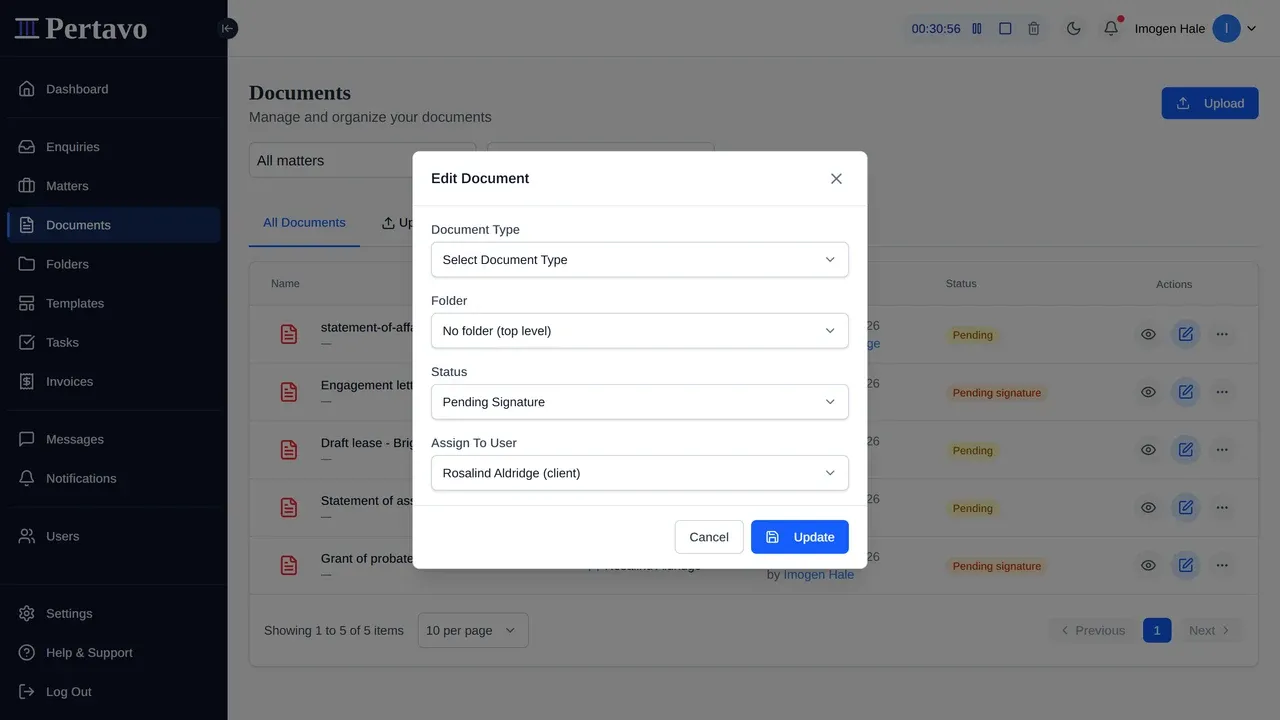
An attorney or admin can set a document’s status directly from its row. Use it to mark work Processed or Completed as you go; those two statuses are only as useful as they are current.
This did not answer it?
Sign in and write to us from Help & Support inside the portal — a message from there arrives with your firm and your account already attached, so nobody has to ask you which is which.
Sign in to Pertavo