Deleting documents and folders
Deletion is permanent — there is no trash and nothing to restore from. Read this before you delete anything.
3 min readReviewed 17 September 2026
Deleting is permanent
Read this part twice, because the product does not have a second chance built into it.
When a document is deleted, it is gone: the record, every stored version of it, and the file itself are all removed. There is no trash, no archive, no recycle bin, no thirty-day window, and no restore. Support cannot undo it for you either — there is nothing left to undo it from.
Most portals soften this with a bin you can fish things out of. This one does not. Treat the delete control the way you would treat a shredder rather than a filing drawer.
Before you delete
A short habit that costs ten seconds and has saved plenty of afternoons:
- Download a copy first if there is any chance it matters. See Download and export options.
- Assume nobody else has a copy. Downloads are not recorded, so there is no way to check whether the client ever collected it — see What is recorded about a document. If it matters, ask them before you delete, not after.
- Ask whether you actually want to delete it. A document that is finished with is better marked Completed than destroyed; it stops appearing in your working queues either way, and one of the two can be reversed.
Deleting a document
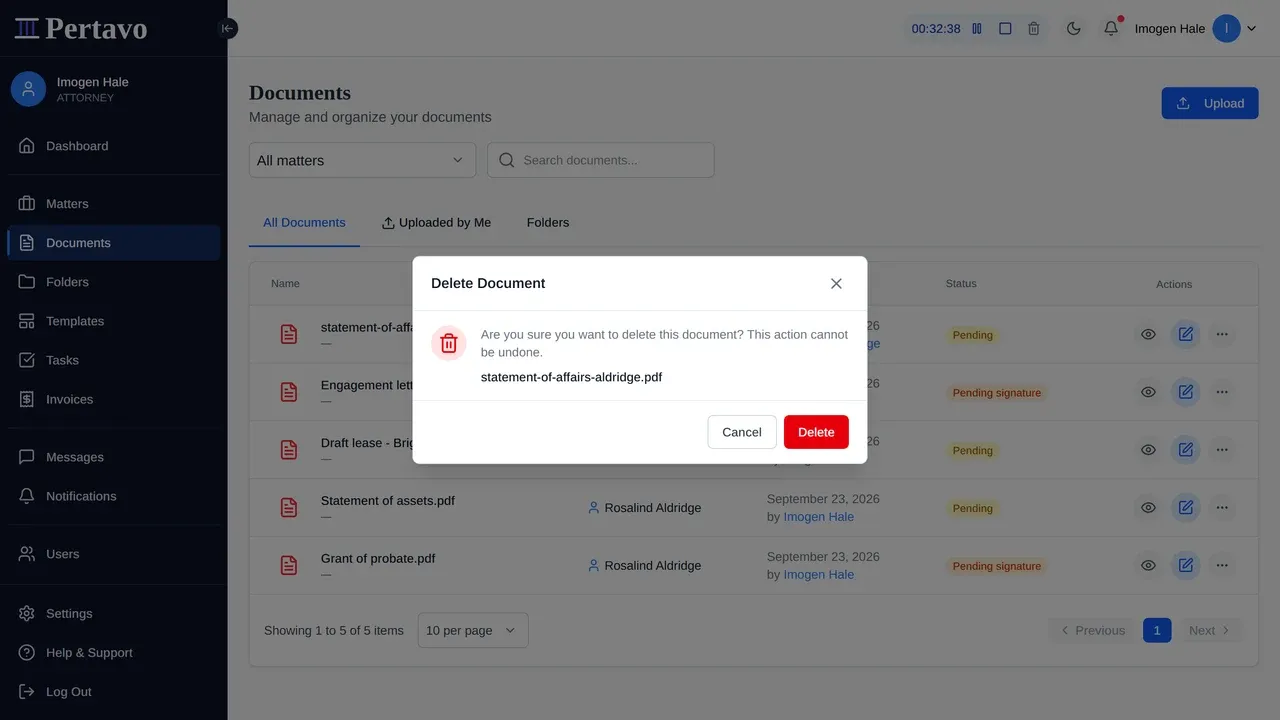
From Documents, open the … menu on the document’s row and choose Delete. You are asked to confirm. The same control is on the document rows in Folders.
Deleting a folder
From Folders, use the delete control on the folder’s row and confirm.
Look inside first. A folder is the one place where a single press can remove more than you were picturing, because what you are looking at is a name rather than the twenty documents behind it.
Clients do not see folder controls at all.
Who is allowed to
- Attorney and admin can delete their firm’s documents.
- A client can delete only documents they uploaded themselves, and only if an admin has turned that on. It is off by default, which is the right default — leave it off unless you have a reason.
The client setting lives under Settings → Organization → Documents.
The safer alternatives
Before reaching for delete, most cases are better served by:
- Marking it Completed — it leaves your queues, and it still exists.
- Reassigning it — it leaves a client’s account without leaving the firm’s records. See Who can see a document.
- Moving it to an archive folder of your own making — the product has no archive feature, but a folder named for the year does the same job and is reversible.
Deleting a client’s account
Deactivating a user from Users stops them signing in. It does not delete what they uploaded — those documents belong to the firm and stay. That is what you want when somebody leaves; see User profile management.
This did not answer it?
Sign in and write to us from Help & Support inside the portal — a message from there arrives with your firm and your account already attached, so nobody has to ask you which is which.
Sign in to Pertavo