Notification preferences
There is one switch, it belongs to the firm rather than to a person, and it only governs email. What that means in practice.
2 min readReviewed 21 September 2026
There is one notification control in Pertavo, and it is worth being clear about its shape before you plan around it: it is firm-wide, it is admin-only, and it governs email alone.
The one switch
Settings → Organization → Notifications carries a single toggle, Enable email notifications. On, the portal sends email about the events below. Off, it sends none, to anybody, for anything.
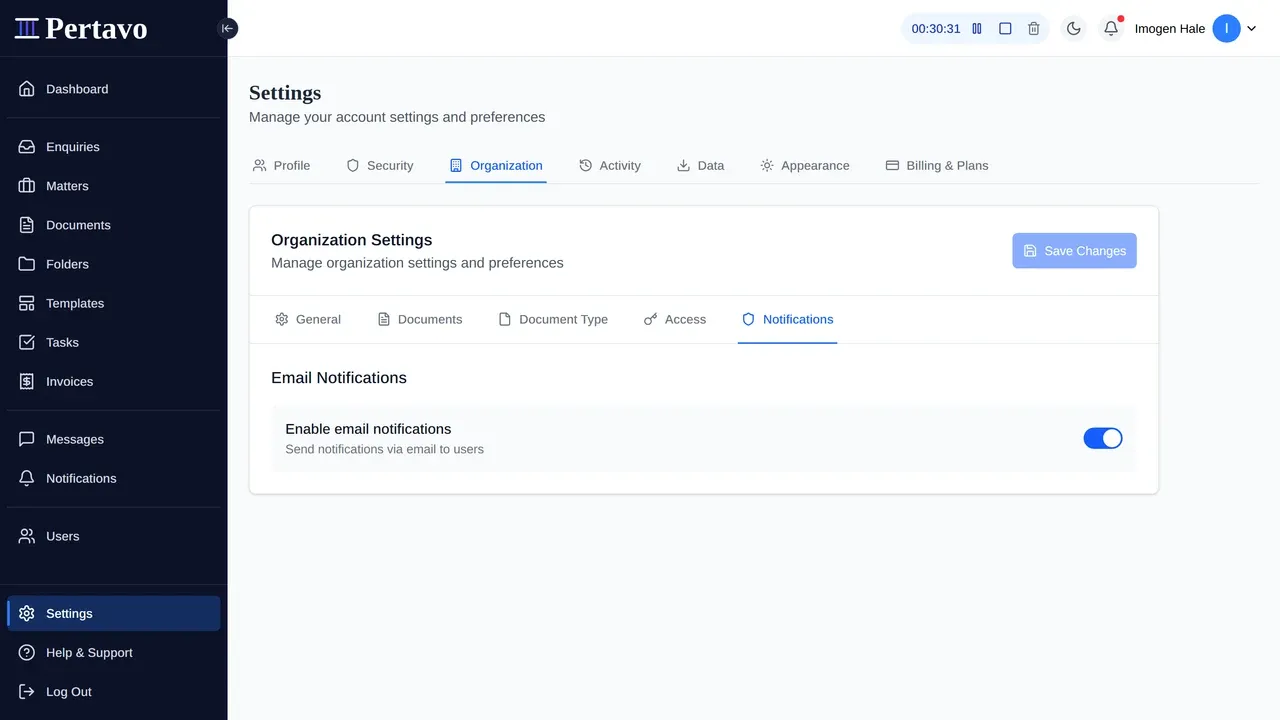
Only an admin can reach it, and the choice applies to everybody in the firm, staff and clients alike.
What there is not
Being direct about this, because the shape of it decides how you use the portal:
- No per-person preferences. Nobody can choose their own notifications. There is nothing about notifications on your profile.
- No control per event type. You cannot keep signature alerts and drop upload alerts. It is all of them or none of them.
- No separate setting for clients. They are covered by the same firm-wide switch.
Notifications inside the portal are always on
The switch governs email only. In-portal notifications are raised either way, and they are the ones you can actually manage: the Notifications list filters by read state, by type and by date range, and Mark All as Read clears the badge. That filtering is the volume control this product really has — see Notifications and alerts.
So how do you stop the noise?
Not with this switch. Turning it off silences a signature request as thoroughly as it silences an upload, and a signature request nobody is told about sits pending until somebody happens to notice a status in a list — which in practice means weeks.
If the email is too much for one person, the honest answers are a mail rule in their own client, or fewer people assigned to things they do not need to act on. Assignment is the real routing mechanism here: see Document assignments.
When a client says they heard nothing
Check these in order, and note that the last one is not a per-client setting:
- That the document was actually assigned to them. An unassigned document reaches nobody.
- That the email address on their account is right — see User profile management.
- That the firm’s switch above is on at all. If somebody turned it off, nobody has had an email since.
This did not answer it?
Sign in and write to us from Help & Support inside the portal — a message from there arrives with your firm and your account already attached, so nobody has to ask you which is which.
Sign in to Pertavo